
ApsisGaming GarrysMod Community
Usefull stuff
!unsuck or !stuck
Gets you out of a sticky situation
!rtv
Rock the vote to change the map
!rewards
Rewards menu where you can get points for simple tasks or by joining our steam / discord , etc..
!shop or F4
Pointshop
!help
Help menu with available information about rules, command, socials etc...
!pch
Prop chose menu [Only available for rank starting from Regular, VIP or Donate shop groups]
C
random taunt [Only for Props]
F3
Taunt menu and self taunt volume control [Only for Props]
If you don't have function keys [F1 - F12] on your keyboard, then you should have a FN key on your keyboard that you should hold and then press the according number key for it.
These are the high optimal settings for Garry's mod but also with some explanations on what to change if you are running a lower end PC.
Since the July 2025 update Garry's mod has assets from Counter-strike source already in Garry's mod, so we no longer need to have Counter-strike source installed on our systems or have to use workarounds like gmodcontent.com provides.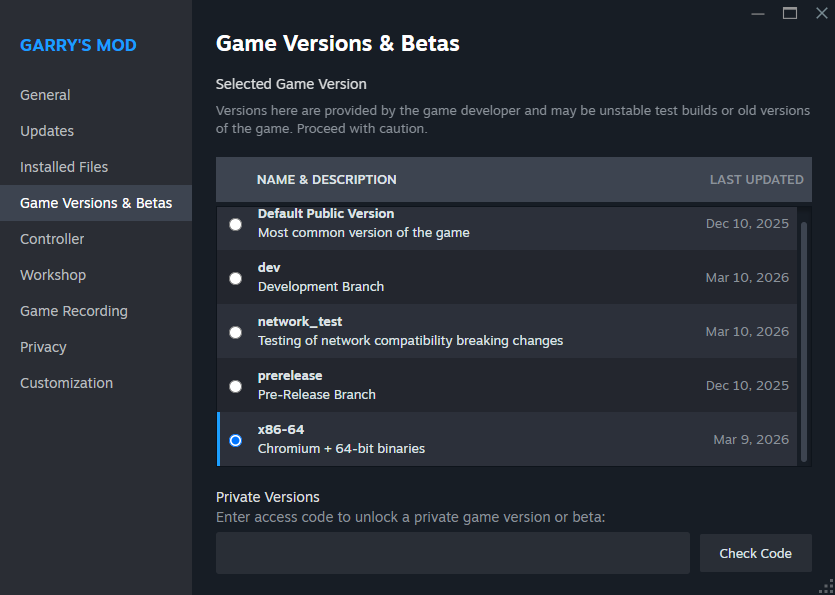
One if not the most important thing that most players miss is the version of the game they are running.
By default you install the 32bit version of Garry's mod.
It's highly suggested that you go to your steam game library,
right click on Garry's mod > Properties. There navigate to
"Game Versions & Betas" and select the X86-64 version.
This way you will be running a 64bit version of Garry's mod.
In the same Properties window:
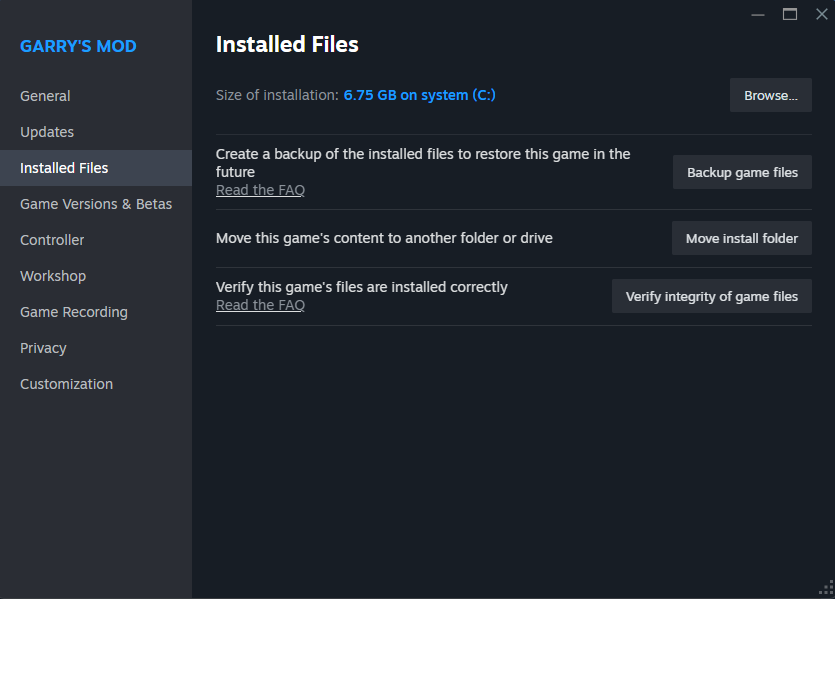
Press on "Installed Files" and then press on the "Browse..." button.
That will open up the folder containing Garry's mod game files. There
you want to open the "garrysmod" folder and then go to the "cfg" folder.
Inside there you will find a file called "autoexec.cfg" if there isn't one
then create it yourself and open it using a notepad.
In there you just need to copy and paste all of this
gmod_mcore_test 1
mat_queue_mode 2
cl_threaded_bone_setup 1
cl_threaded_client_leaf_system 1
r_threaded_client_shadow_manager 1
r_threaded_particles 1
r_threaded_renderables 1
r_queued_ropes 1
studio_queue_mode 1
mat_specular 1
menu_cleanupgmas
host_writeconfig
Afterwards just save the file and close it.
Then you want to navigate back to the properties window
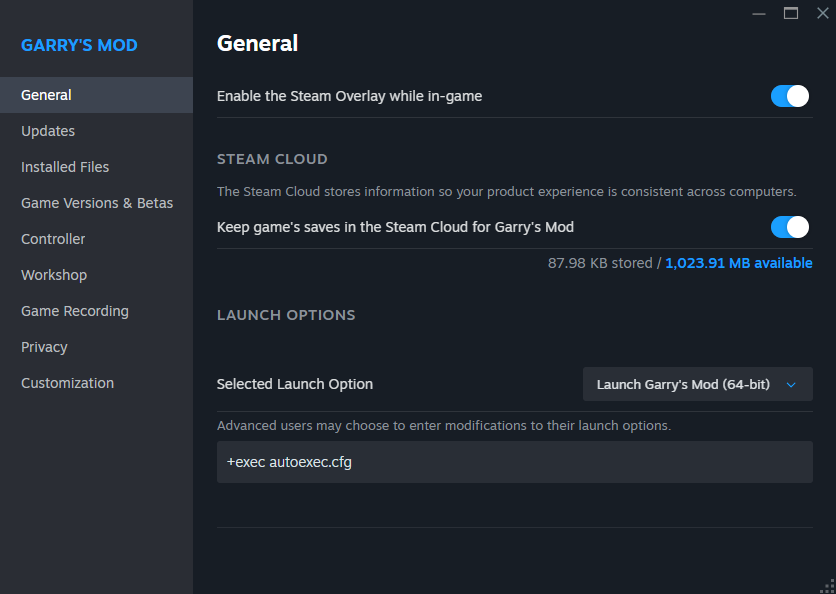
and select the "General" tab. There you will see - Selected Launch Option.
Change that to "Launch Garry's Mod (64-bit)"
And in the empty field below write in
+exec autoexec.cfg
Launch Garry's Mod and go to Options.
There you will see these windows.
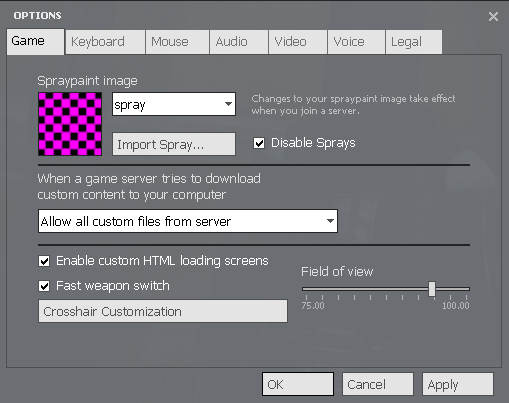
In Game window:
You want to always have set "Allow all custom files from server"
Additionally you can Enable custom HTML loading screens
so that you don't look at a grey or black screen when connecting
to a server.
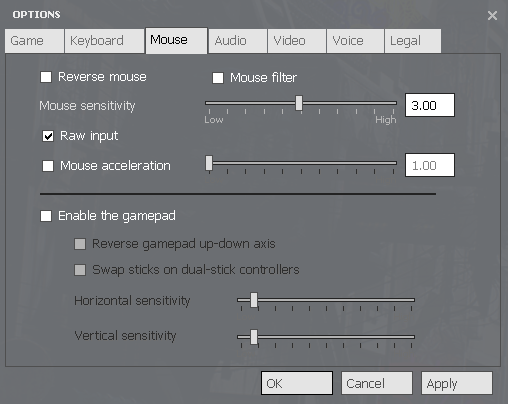
In Mouse window:
You only care about "Raw input" to be checked. Uncheck anything
else and adjust the sensitivity to your liking.
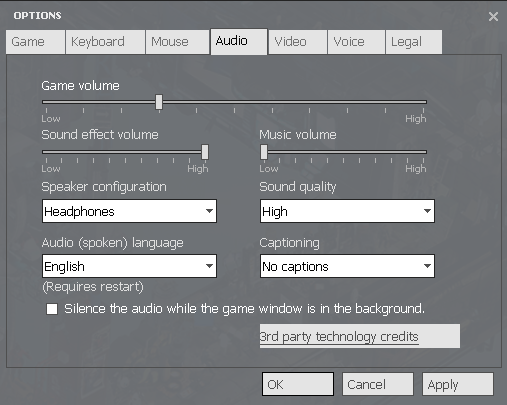
In Audio window:
Everything here is up to your own preferences but it would be best to
use "Headphones" or "2 Speakers" as Speaker Configuration
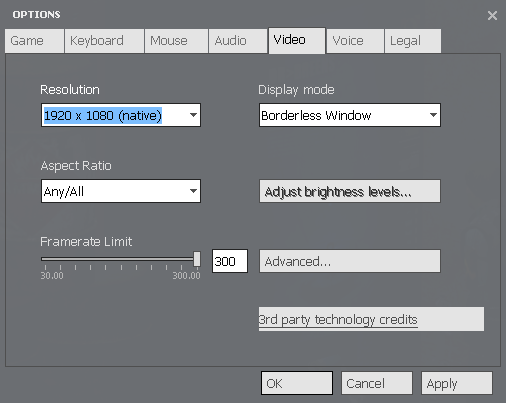
In Video window:
Rosolution - You want to keep this to the one that is marked with "(native)"
Display mode - If you have a decent PC then you can use "Borderless Window"
But if your PC is a bit older, always use "Full screen"
Framerate Limit - Never go overboard with this one, if the limit is 300 then keep it there.
Setting the framerate limit higher than 300 with console settings can cause tearing
that will look like you're lagging. Specially if you are on a Laptop then try to keep it to
the refresh rate your laptop has.
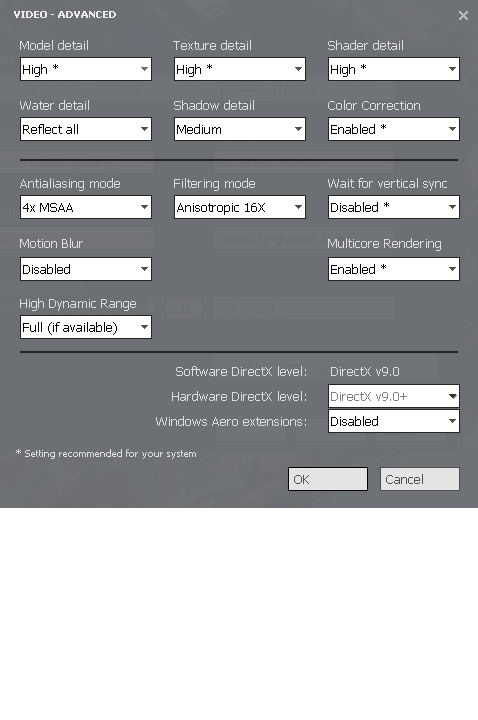
Also in Video window press on "Advanced" and you will be presented with this window:
Here Garry's mod already provides you with best settings for
your system by adding a "*" to the setting you should use.
But sometimes these are not the best for your actual system.
Model detail - High - Models and Addons break if it's set too low but if
your pc can't handle it, then try to use "Medium".
Texture detail - High - No need to set it higher even on a powerful PC
but if your PC is on the low end then it's safe to put it to "Medium" or even "Low".
Shader detail - High - Can safely put to "Low" if your pc is can't handle it.
Water detail - Reflect all - This one doesn't matter much so if you have a low
end PC then you can safely lower it to "Reflect world" or "Simple reflections".
Shadow detail - Medium - This one matters a lot based on the gamemode
but since we're not playing Counter-Strike here, you can turn it to "Low" to
disable shadows and increase FPS.
Color correction - Enabled - Doesn't matter much, you can go set it to "Disabled" too.
Antialiasing mode - 4x MSAA - No need to set this higher but if your PC can't
handle it then set it to "2x MSAA" or "None".
Filtering mode - Anisotropic 16x - This just makes the textures look better if
your pc can't really handle it try to lower it one by one.
Wait for vertical sync - Off - Always Off!
Motion Blur - Disabled - Yucky!
Multicore Rendering - Enabled
High Dynamic Range - Full - This one varies but good to have it on.
Windows Aero extensions - Disabled